1
Open the daily welcome page at sign-in
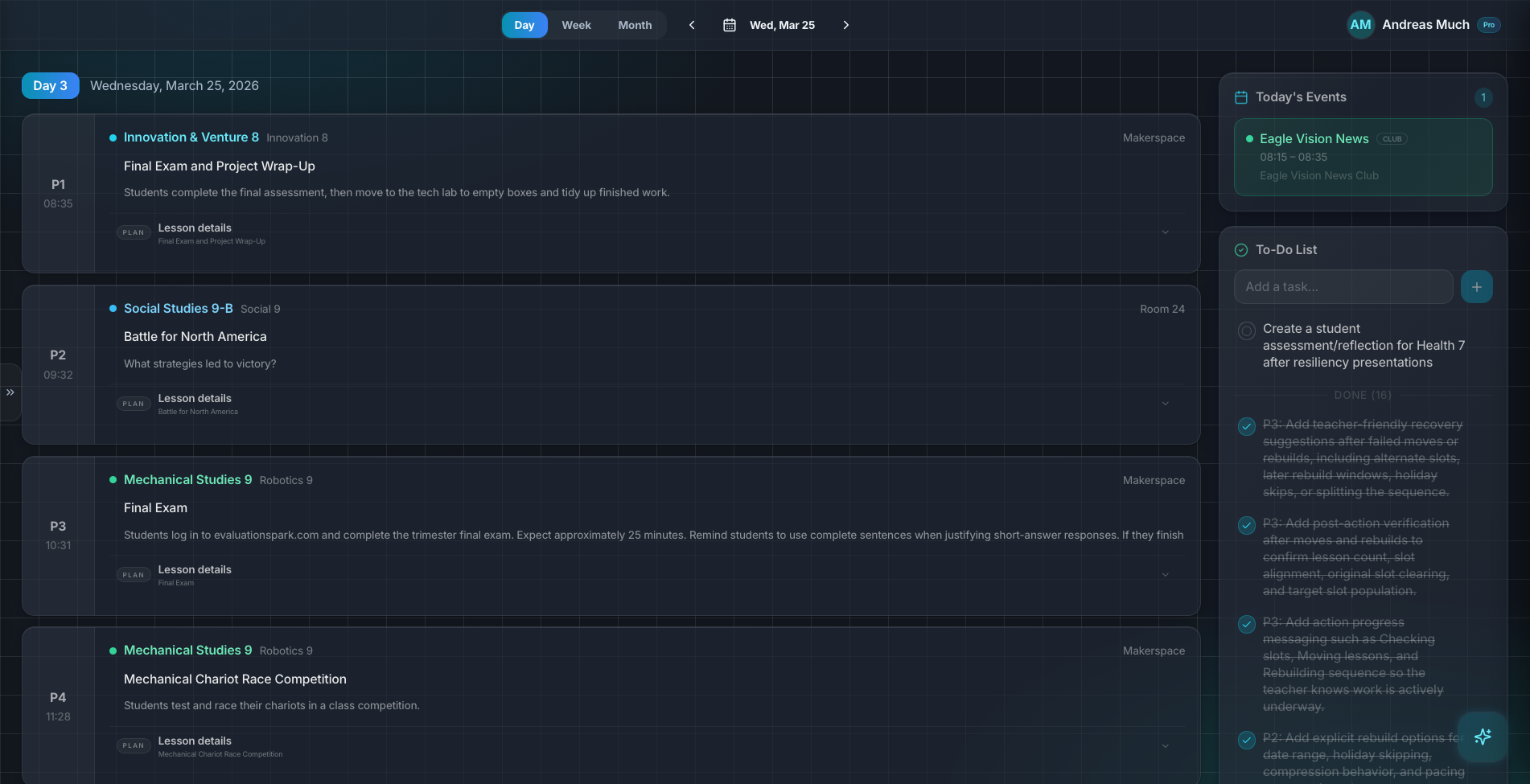
After entering the app, start on the welcome dashboard. This page is designed as a day-start command desk so you can review today before editing anything.
Start each day with a quick briefing view that combines today’s classes, events, and task priorities with direct links to the day planner and to-do list.
Who this guide is for
Teachers who want a single morning checkpoint before classes start.
By the end
Use the welcome page to scan classes, events, and due-today tasks in under a minute.
By the end
Jump directly to the day planner or full task list from the morning dashboard.
By the end
Understand how the daily briefing reflects your schedule template, events, and task data.
These steps are ordered to match how the planner works in practice, so later actions build on the context created in earlier ones.
After entering the app, start on the welcome dashboard. This page is designed as a day-start command desk so you can review today before editing anything.
Review each period, class, and linked lesson title. If a period looks wrong, open the day planner to adjust lesson details before students arrive.
Check the events list for meetings, assemblies, supervision blocks, or reminders that affect pacing. This helps avoid lesson assumptions that no longer fit today’s reality.
Use the to-do snapshot to identify urgent prep work due today. Open the full task list when you need to reorder priorities, update status, or capture additional action items.
Use “Open Day Planner” when you need lesson-level edits, or go to Tasks when admin and prep work come first. The goal is to move from overview to action with one click.
FAQ
It highlights tasks due today so morning prioritization stays focused. Open the full Tasks page for the complete task backlog and project-linked items.
Events are often the reason pacing breaks. Seeing them beside classes helps you catch timing conflicts before the day starts.
Related guides
Use the weekly and daily planner views to track real class dates, move lessons safely, spot gaps, and feed debrief notes back into the next plan.
Run day-to-day class operations by connecting class pages, student sharing, tasks, project tracking, and Drive resource review in one planner workflow.
Use Lark by text or voice to create, edit, delete, reschedule, and explain planning work across lessons, units, outcomes, and assessments.
Early access
Join the early access list and use Planlark with your real schedule, curriculum, units, and assessments.
No credit card required. Early access updates only.