PlanLark
Teacher planning software

Plan your teaching.
Not your paperwork.

PlanLark connects your curriculum, units, lessons, classes, assessments, tasks and teaching notes in one planner — and turns a planned lesson into a printed activity sheet, Student and Teacher versions included.

Free plan for every teacher · no credit card required

The PlanLark Today view showing a teaching day with two classes on the timetable, a suggested next action, and a side rail of notifications, tasks and notes
One connected system

Your planning already connects. Your tools should too.

A lesson belongs to a unit. A unit answers to curriculum. The marking, the photocopying and the note you wrote after fourth period all belong to the same day of teaching. PlanLark keeps those relationships instead of asking you to remember them.

CurriculumThe objectives this class covers this year
UnitGuiding questions, topics, and its lessons in order
LessonOn the date the class meets, with its outline and materials
Activity sheetBuilt from the lesson’s objectives, edited by you, printed as Student and Teacher versions

And around the plan

Tasks, projects and notes attach to the lesson, unit or class they are about — and stay reachable from the planner rather than a separate app.

Activity sheetsTasksProjectsNotesAssessmentsClasses
Plan, create, print

From a planned lesson to a worksheet in your hand

The Activity Builder is part of the planner, not a separate tool: it starts from the lesson you already planned and ends at the printer.

  1. 1 · Plan lessons and unitsObjectives, source material and the class come from the plan you already made.
  2. 2 · Create activitiesChoose from eleven activity types or a practice test; Lark generates and checks every item against your objectives.
  3. 3 · Edit and printChange any question, regenerate one, set the style and paper size, and print the pages you see.
  4. 4 · Student and Teacher versionsStudents get the sheet without answers; you get the answer key, from the same document.
More on the Activity Builder
Start with your curriculum

The curriculum you actually teach, in the planner

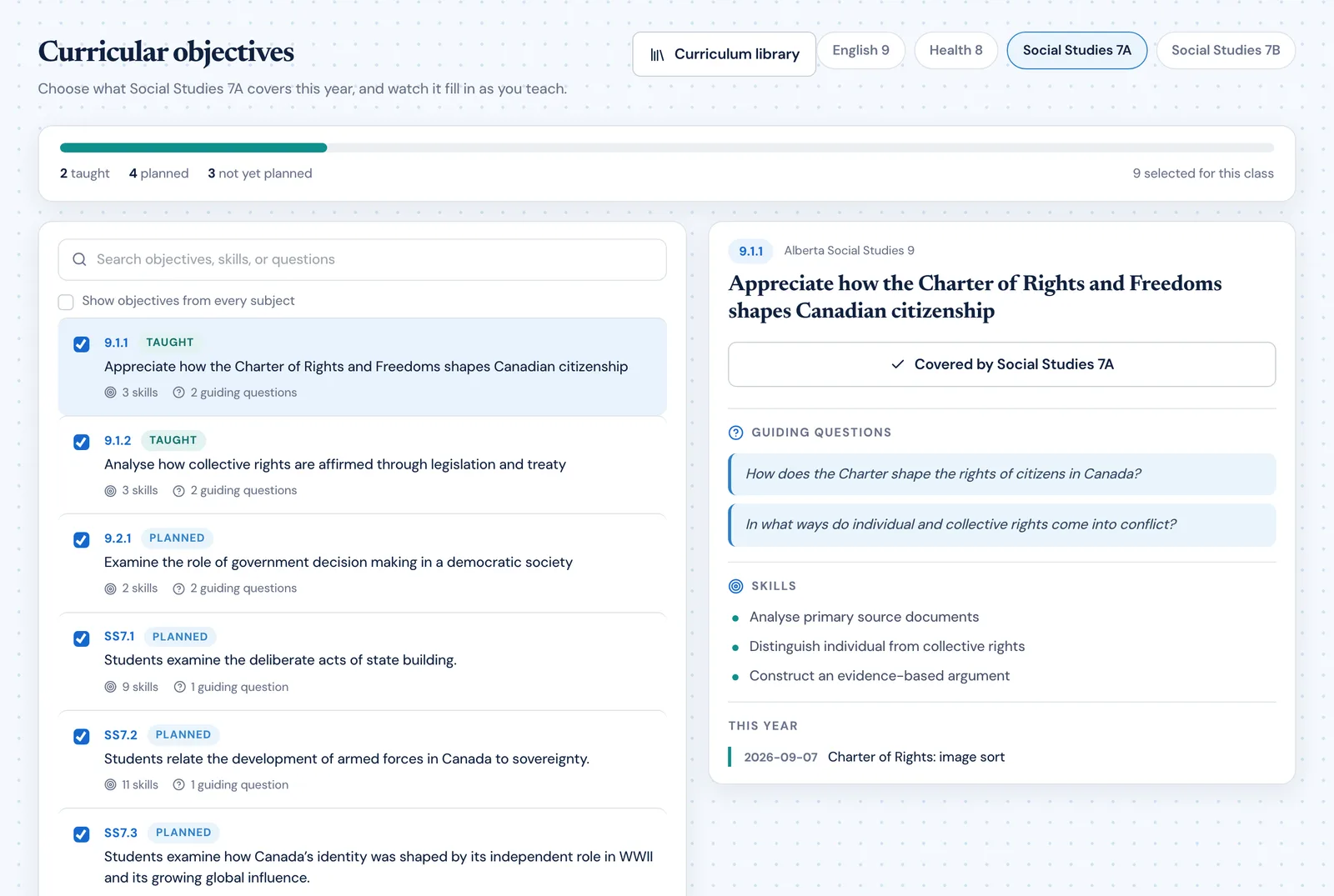
Choose the objectives each class covers this year from a curriculum library, then watch them fill in as you plan and teach. Coverage is a by-product of planning rather than a spreadsheet rebuilt in June.

  • Pick the objectives each class covers, per class
  • Every objective carries its guiding questions and skills
  • See at a glance what is taught, planned, and not yet planned
More on this
PlanLark curricular objectives for a Social Studies class, showing a coverage bar with objectives marked taught, planned and not yet planned, and one objective open with its guiding questions and skills
Turn curriculum into units

A unit is a place to work, not a label on a calendar

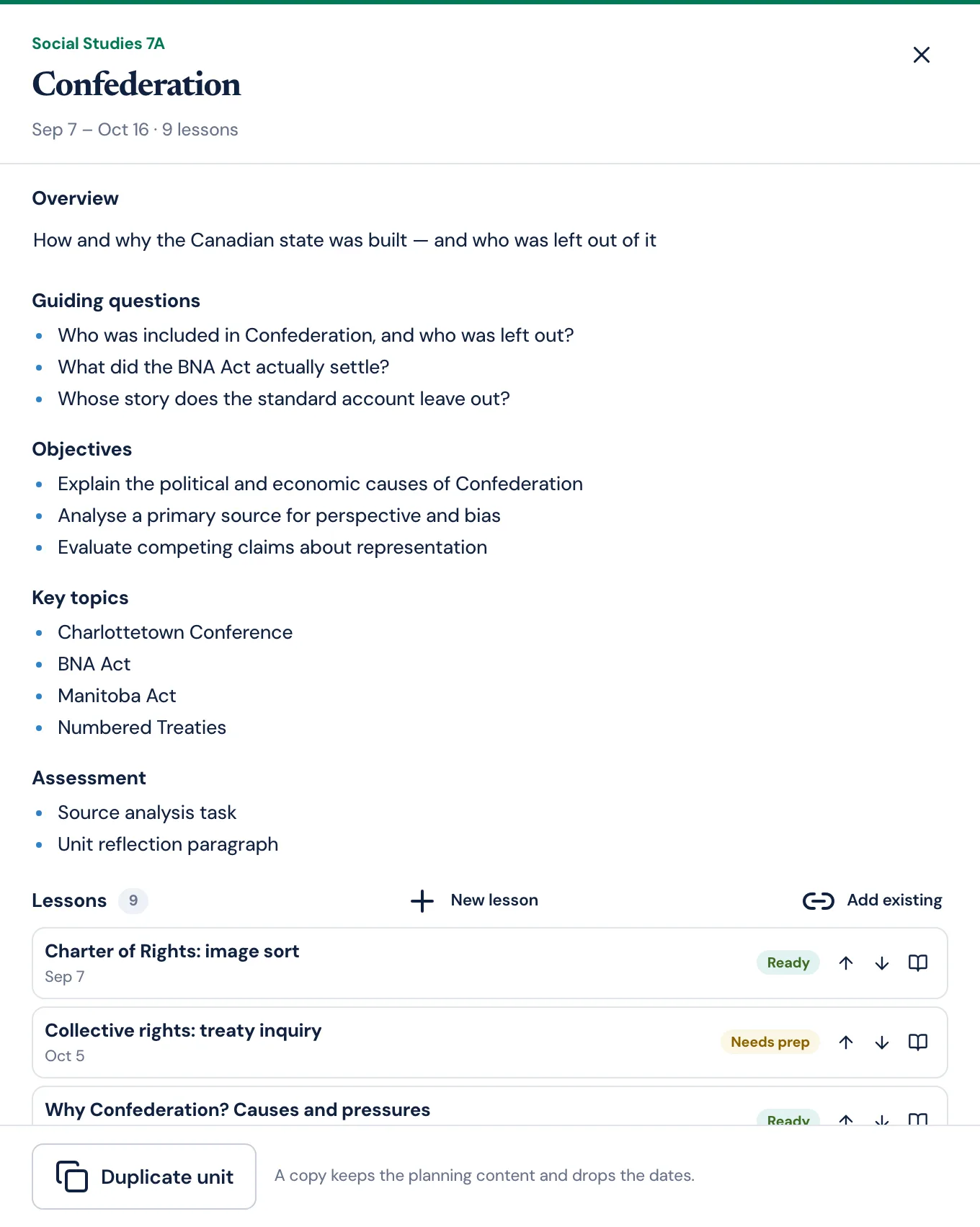
Open a unit and find its overview, guiding questions, objectives, key topics and assessment beside the lessons that teach them — in the order you will teach them.

  • Guiding questions, objectives and key topics on the unit itself
  • Reorder lessons, add existing ones, or plan a new one in place
  • Duplicate a unit to teach it again; the planning comes, the dates do not
More on this
The PlanLark unit workspace for a Confederation unit, showing its overview, guiding questions, objectives, key topics, assessment and its ordered list of lessons with preparation badges
Turn units into lessons

Every day a class meets, and what you planned for it

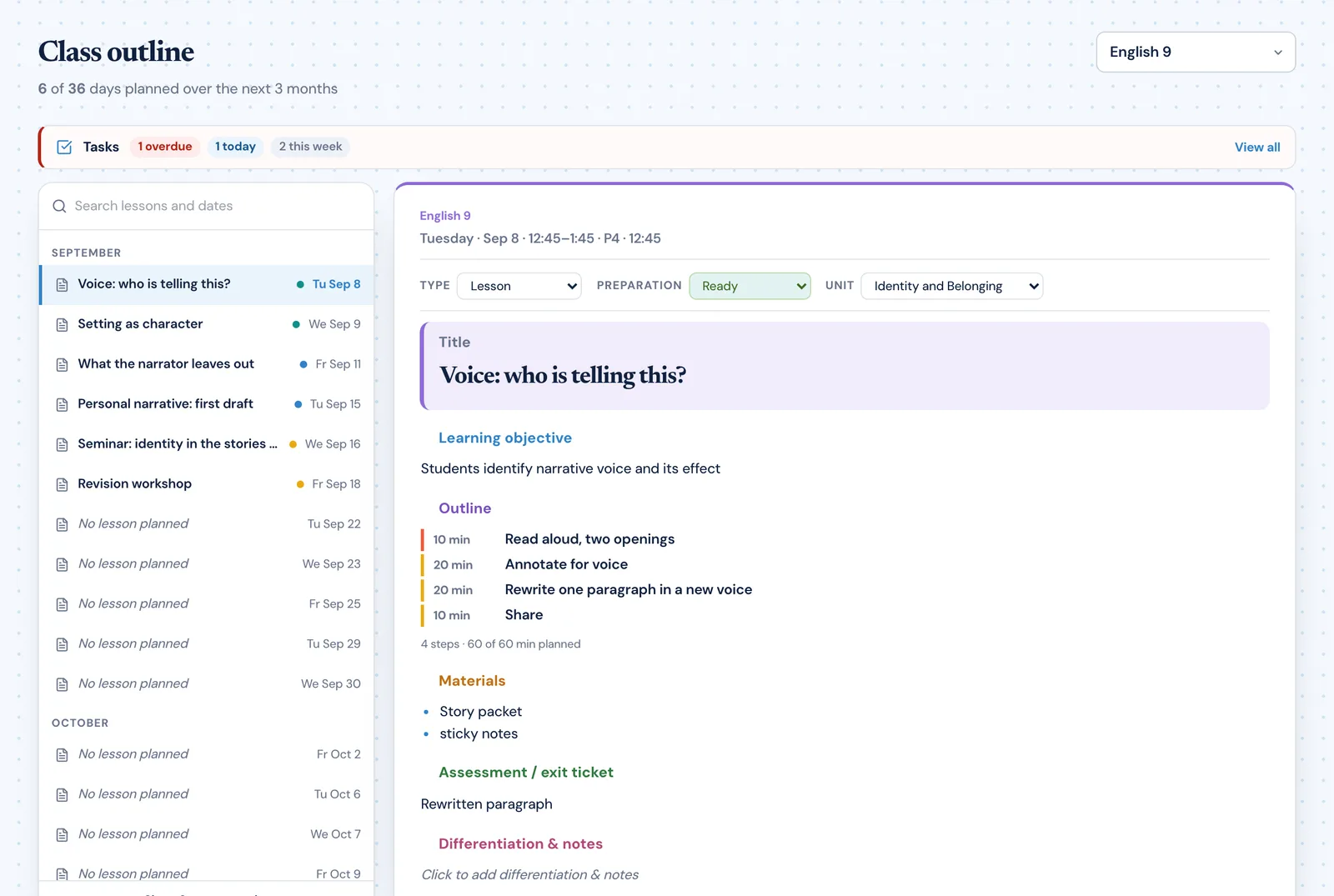
Pick a class and every date it meets is listed by month with the lesson planned for it. Select a day and the plan appears as a finished page — click any section to edit it in place.

  • Lesson type, preparation status and unit on every lesson
  • A timed outline that adds up to the length of your period
  • Related tasks and notes sit with the lesson they belong to
More on this
The PlanLark class outline for English 9, listing every date the class meets by month beside a finished lesson plan with its learning objective, timed outline, materials and assessment
Turn lessons into worksheets

Activity sheets and practice tests, from the objectives you already planned

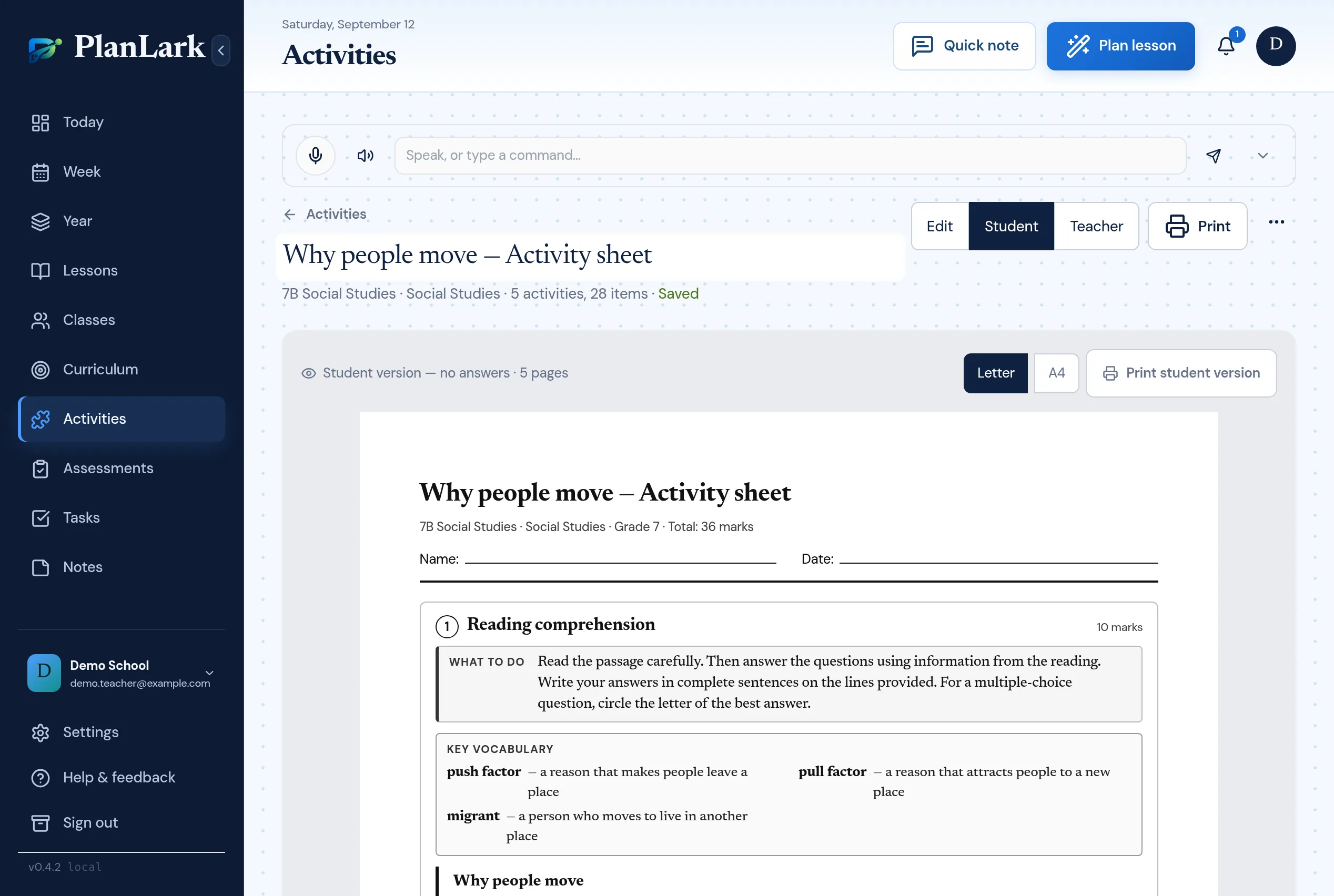
Open a lesson, choose Create Activity, and the objectives and material are already there. Pick the activity types, generate, edit any question, and print a Student version and a Teacher version with the answer key — as real Letter or A4 pages.

  • Eleven activity types and a practice-test mode with a blueprint per objective
  • Every question editable; regenerate one item or rewrite at another level
  • Student and Teacher versions, page numbers, and a preview that matches the printout
More on this
The PlanLark Activity Builder showing a Student preview of a worksheet as real pages, with a Reading comprehension activity, its What-to-do panel and a key vocabulary box
Stay ready for what is next

Today, this week, and the shape of the year

Today opens on the classes you teach and the prep still outstanding. Week lays out the timetable. Year shows units as bands across the dates each class actually meets.

  • Today: your teaching day, tasks, notes and notifications together
  • Week: the real timetable, period by period
  • Year: units across the year, adjustable a meeting at a time
More on this
The PlanLark Today view showing a teaching day with two classes, a suggested next action, and a side rail of notifications, tasks and notes
Keep the work around teaching organized

Tasks and projects, in one system

The photocopying, the field-trip forms, the marking. Standalone tasks and project tasks are the same records, so a project visibly contains its tasks and nothing is duplicated.

  • Statuses, priorities, categories and deadlines
  • Projects hold their own tasks and show real progress
  • Today and This week views for what is actually due
More on this
The PlanLark project view listing teaching projects with their deadlines and progress
Remember what matters

The note you meant to keep, where you will find it

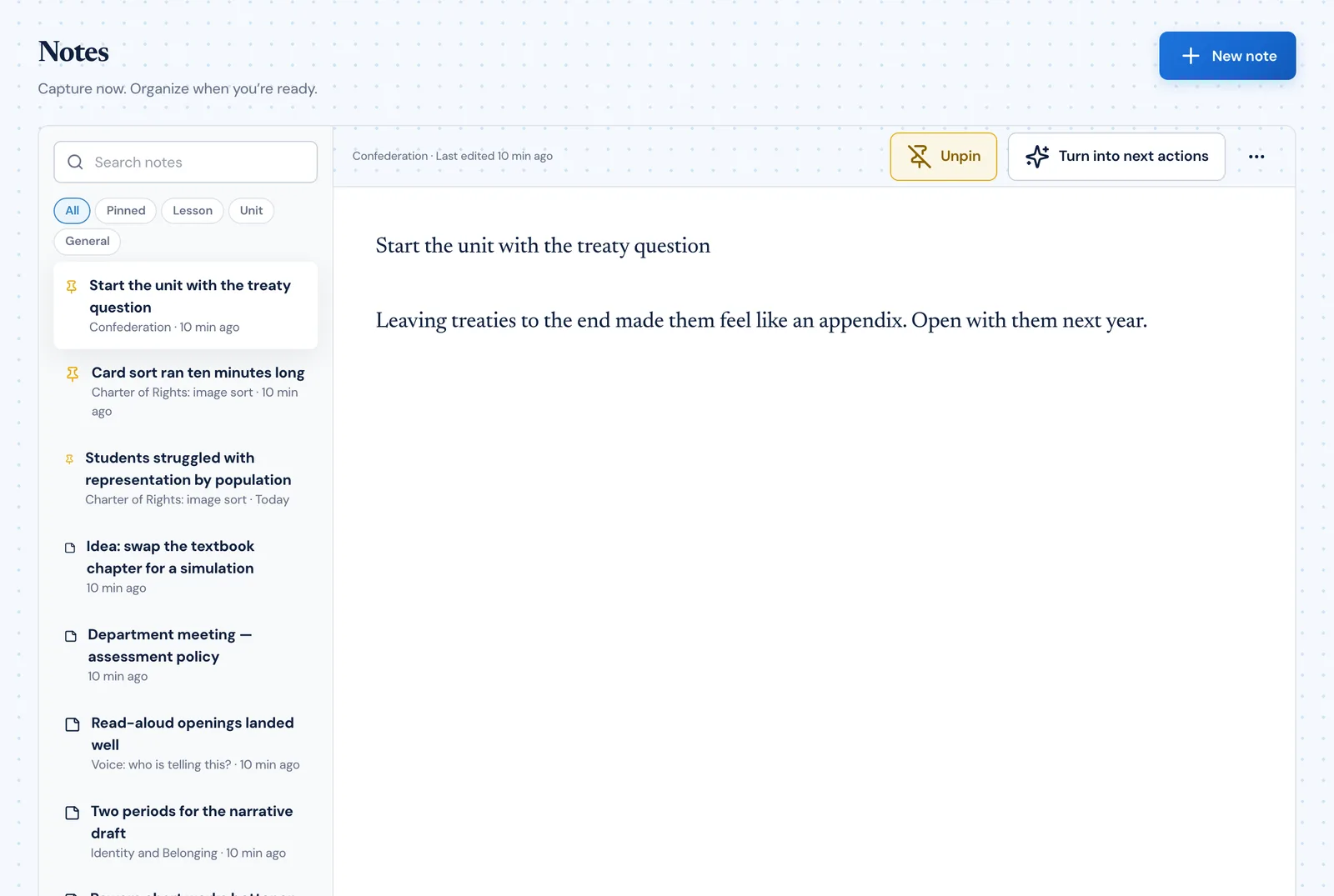
One notes system. A note can belong to a lesson, to a unit, or to nothing at all — and it shows up wherever it belongs without becoming a second copy.

  • Capture a note in a keystroke from anywhere in the planner
  • Notes on a lesson also appear on its unit
  • Pin what matters; filter by lesson, unit or general
More on this
The PlanLark Notes view with filters for pinned, lesson, unit and general notes, and one note open for editing
AI that supports the teacher

A drafting assistant, not a replacement for your judgement

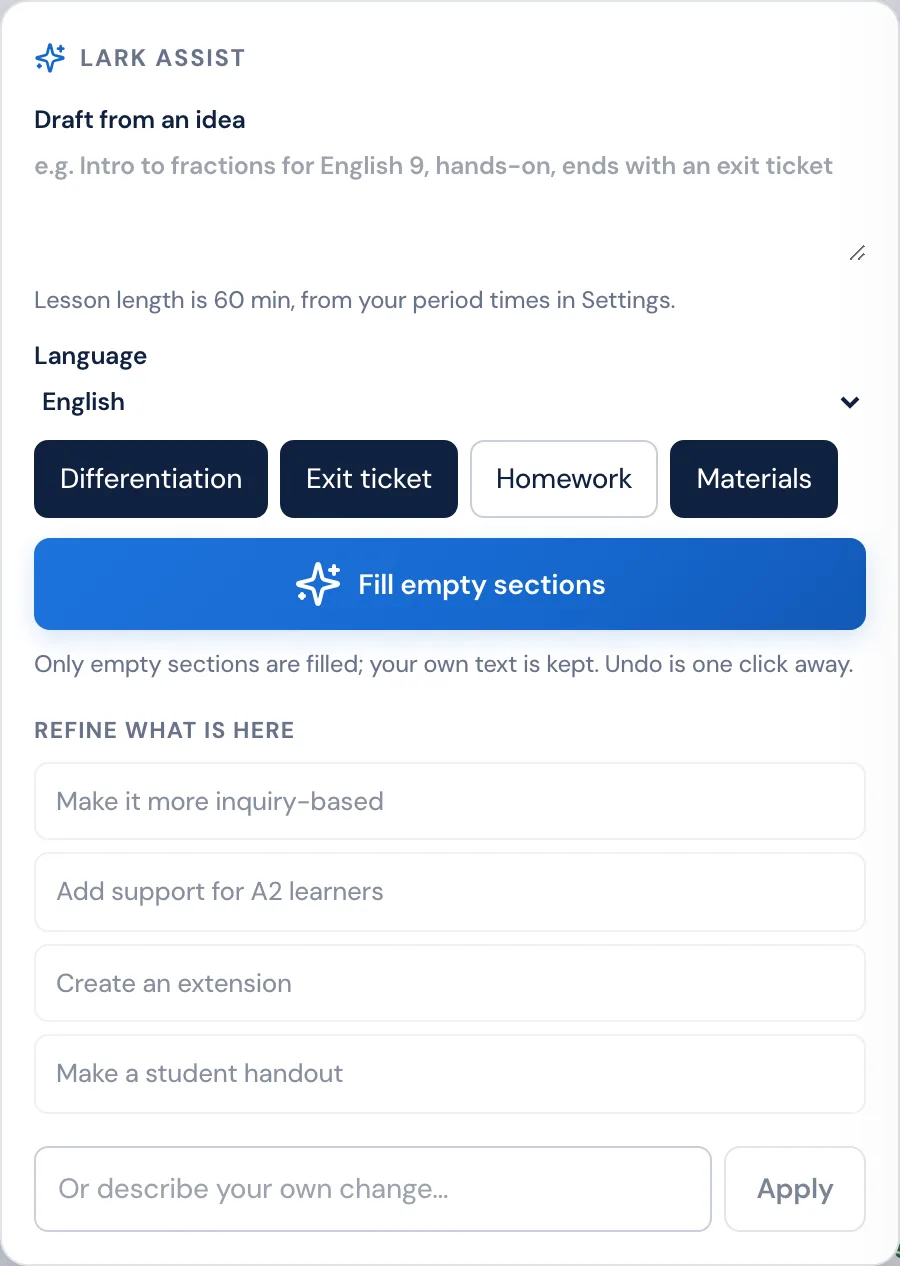
Lark sits inside the lesson editor. Describe the lesson you want and it drafts the sections you have left empty — never overwriting what you wrote. Then refine what is there, in your words.

  • Draft a lesson from a sentence, at the length of your period
  • Only empty sections are filled — your own text is kept, and undo is one click
  • Refine what is there: more inquiry-based, an extension, a student handout
  • Every draft stays fully editable, because you are the one teaching it
More on this
The Lark assist panel inside the PlanLark lesson editor, with a box to draft a lesson from an idea, language and inclusion options, a Fill empty sections button, and preset refinements

Spend less time managing your planning.

PlanLark keeps your curriculum, lessons and planning work connected so you can focus on teaching.

Free plan for every teacher · no credit card required

Questions

Before you start

What is PlanLark?
PlanLark is teacher planning software that keeps curriculum, units, lessons, activity sheets, classes, assessments, tasks, projects and teaching notes in one connected planner, instead of spreading them across separate tools.
Who is PlanLark built for?
Classroom teachers who plan several classes at once, teach to a curriculum, and change their plans often — the ones for whom planning is a weekly job rather than a one-time setup.
Does PlanLark handle rotating schedules?
Yes. Set your timetable, cycle days, holidays and non-teaching days once, and lessons are planned on the dates each class actually meets.
How does PlanLark connect lessons to curriculum?
Choose the objectives each class covers this year, then attach a guiding question, a learning outcome, or individual statements to a lesson. Coverage for that class updates as lessons are planned and taught.
What does the AI actually do?
Lark works inside the lesson editor and the Activity Builder. Describe a lesson and it drafts the sections you have left empty at the length of your period; in the Activity Builder it generates worksheet items from your objectives and checks them. It never overwrites what you wrote, and everything it produces stays editable.
Can PlanLark make worksheets from my lesson?
Yes. The Activity Builder starts from a class, lesson or unit, takes its objectives and material, and generates activity sheets or practice tests in eleven activity types. You edit or regenerate any question, then print a Student version and a Teacher version with the answer key as real Letter or A4 pages.
Does the Activity Builder add pictures to worksheets?
Not on its own. On a reading, Lark suggests what kind of picture to look for; you add an image you have the right to use, with its caption and source, and it prints with the passage. PlanLark does not search for or generate images.
Is PlanLark free for teachers?
There is a free plan with the planner, lesson editing, curriculum outcomes and 30 AI interactions a month. Pro and School lift the AI limit and add the unit planner and marking progress tracking.