1
Open Lark from the page you are already using
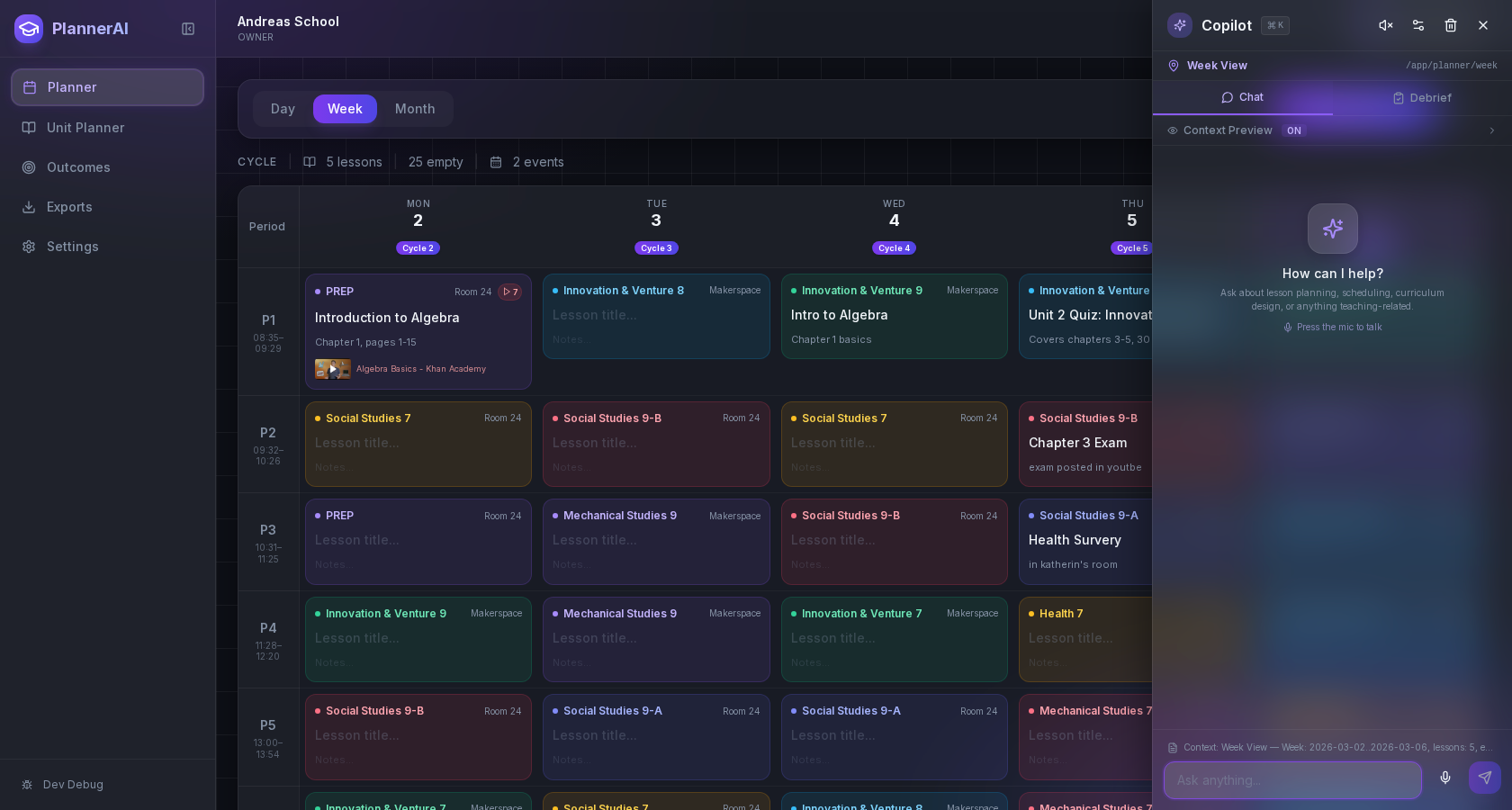
Lark works best when it can see the current screen context. Opening it from the Weekly Planner, Unit Planner, or Outcomes area gives it much stronger context than a generic empty chat.
Use Lark by text or voice to create, edit, delete, reschedule, and explain planning work across lessons, units, outcomes, and assessments.
Who this guide is for
Teachers who want to control planning work with natural language instead of clicking through each record manually.
By the end
Know what kinds of changes Lark can make safely inside the planner.
By the end
Use page context so Lark works on the right lesson, unit, or assessment.
By the end
Write clearer prompts for edits, regeneration, and workflow automation.
These steps are ordered to match how the planner works in practice, so later actions build on the context created in earlier ones.
Lark works best when it can see the current screen context. Opening it from the Weekly Planner, Unit Planner, or Outcomes area gives it much stronger context than a generic empty chat.
The best prompts name the object and the change: create a lesson, replace question 4, move the quiz, import a curriculum, or show uncovered outcomes. Specific requests produce more useful structured actions.
After Lark builds something, keep iterating on the same object. Ask it to shorten a lesson, change the difficulty, delete a question set, or regroup outcomes instead of repeating the original request from scratch.
Voice is useful for fast changes between classes, quick schedule questions, and spoken lesson ideas. The goal is to move from idea to saved planning change without a separate note-taking step.
Lark should report what changed. Use that result to decide whether you need one more targeted edit or whether the planning item is ready to use.
FAQ
Lark is meant to do both. In Planlark, the goal is AI that can create, update, delete, reschedule, and regenerate structured planning work instead of only writing advice in a chat bubble.
Because it uses routed page context. If you open Lark from the Unit Planner, it can see unit details and related assessments. If you open it from the Outcomes page, it can focus on curriculum records and coverage.
Related guides
Set up your schedule, classes, and first planning workflow so the weekly planner, units, and AI actions all use the right school context.
Use the Unit Planner to create a unit, add source material, generate lesson sequences on real dates, and keep outcomes tied to the plan.
Build quizzes, exit tickets, standard assignments, and text-based assignments with answer keys, editable question types, and AI control over each assessment.
Early access
Join the early access list and use Planlark with your real schedule, curriculum, units, and assessments.
No credit card required. Early access updates only.