1
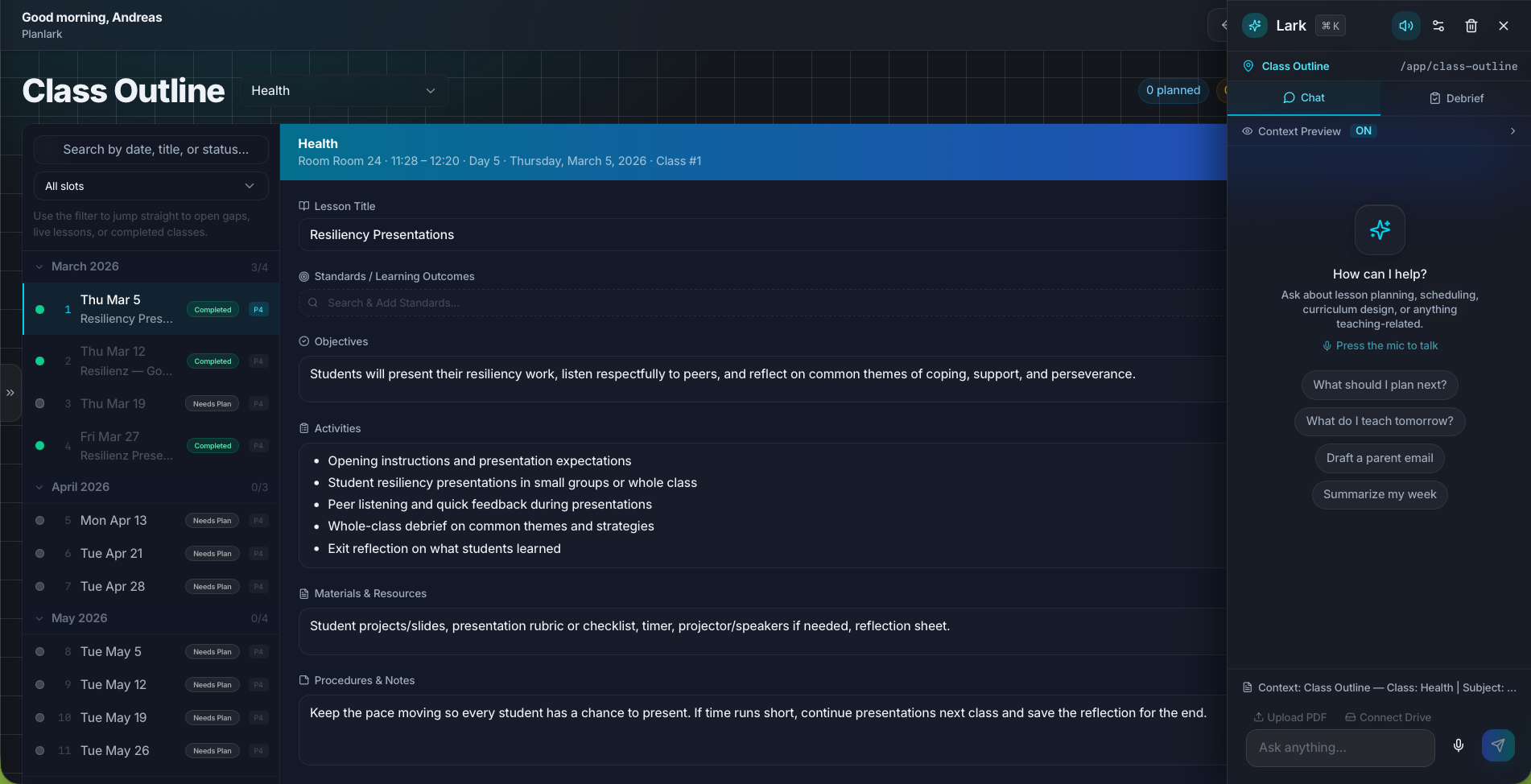
Set class context in Class Outline
Open Class Outline to manage class-specific notes, materials, and students. Keep this context current so lesson planning, communication, and resource decisions stay anchored to the right class.
Run day-to-day class operations by connecting class pages, student sharing, tasks, project tracking, and Drive resource review in one planner workflow.
Who this guide is for
Teachers coordinating class communication, prep work, and planning assets across the week.
By the end
Use Class Outline as the source of truth for class notes, materials, and student-facing page updates.
By the end
Separate short-cycle task execution from longer project planning without losing classroom context.
By the end
Review and apply Drive resource suggestions before linking them into lessons and units.
These steps are ordered to match how the planner works in practice, so later actions build on the context created in earlier ones.
Open Class Outline to manage class-specific notes, materials, and students. Keep this context current so lesson planning, communication, and resource decisions stay anchored to the right class.
Use the class share controls to publish a student-facing page with recap notes and resource links. Update it as lessons progress so students always have the current reference view.
Capture prep work, reminders, and deadlines in Tasks. Use status and due dates to keep today’s operational workload visible during active teaching weeks.
Create projects for multi-step work such as report cards, curriculum mapping, assessments, or parent communication. Projects help group related tasks and keep progress measurable.
Open the resource review queue to accept or reject AI-matched resources. Approving intentionally keeps unit and lesson resources high quality instead of auto-linking everything.
FAQ
Use Tasks for immediate action items and due dates. Use Projects when the work has multiple phases or spans several days and needs grouped progress tracking.
No. Review suggestions first. Accepting only the right resources keeps lesson and unit materials relevant and avoids noisy attachments.
Related guides
Start each day with a quick briefing view that combines today’s classes, events, and task priorities with direct links to the day planner and to-do list.
Use the weekly and daily planner views to track real class dates, move lessons safely, spot gaps, and feed debrief notes back into the next plan.
Set up your schedule, classes, and first planning workflow so the weekly planner, units, and AI actions all use the right school context.
Early access
Join the early access list and use Planlark with your real schedule, curriculum, units, and assessments.
No credit card required. Early access updates only.